Two-factor authentication (2FA) adds a second step when you sign in: after your password, you enter a one-time code. Turn it on in Settings › Password & authentication. You can use an authenticator app, codes by email, or both.
Choose a method
- How
- A 6-digit code from an app such as Google Authenticator, Authy or 1Password.
- Backup
- Backup codes, each usable once.
- How
- We email you a one-time code each time you sign in.
- Needs
- Access to your account email.
Turn on the authenticator app
- Open Password & authentication
Sign in, open your account menu, then Settings, then Password & authentication. Click Set up authenticator app and confirm your current password.
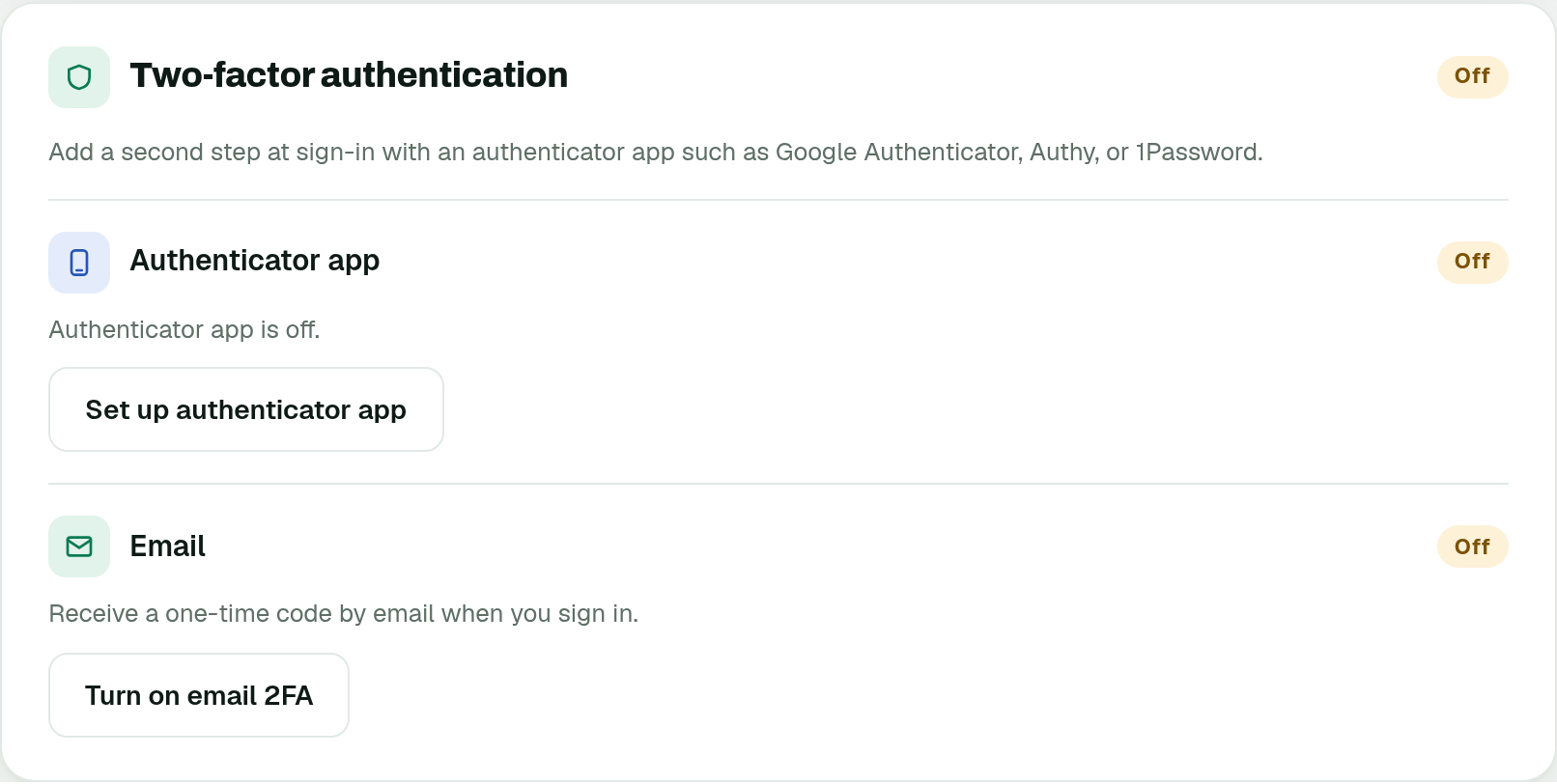
Settings › Password & authentication - Scan the QR code
Scan it with your authenticator app, or enter the key manually.
- Enter the 6-digit code
Type the code your app shows, then click Turn on 2FA.
- Save your backup codes
Store them somewhere safe, then click I’ve saved these codes. Each code works once if you lose access to your app.
Turn on email codes
- Click Turn on email 2FA
In Password & authentication, under Email, click Turn on email 2FA and confirm your password.
- Enter the code from your email
We send a verification code to your email. Type it to finish.
When both methods are on, choose which one is used by default under Preferred at sign-in.
Turn it off or get new codes
To turn off the authenticator app, click Turn off 2FA and enter your password and a current authenticator or backup code. To turn off email codes, click Turn off email 2FA: we email you a code to confirm. Get new backup codes replaces your previous ones.
Lost your phone? Sign in with one of your backup codes, then set up the authenticator app again.
Was this page helpful?